Termal App Studio.
Build, translate, test and package your own Termal apps.
Introduction
Termal App Studio is the in-desktop IDE for creating third-party Termal apps. You write plain HTML / CSS / JavaScript; the Studio gives you a code editor, a component palette, a manifest editor (icon & permissions), a per-app translation manager, a one-click sandboxed test, and a packager that produces an installable .tapp bundle.
Every app runs inside an isolated sandbox (an opaque-origin iframe). It renders its own UI locally and talks to the desktop through the Termal SDK. Privileged actions (file system, network, storage, clipboard, webview) cross a message bridge that enforces the permissions declared in your manifest - so an app can only do what it asked for.
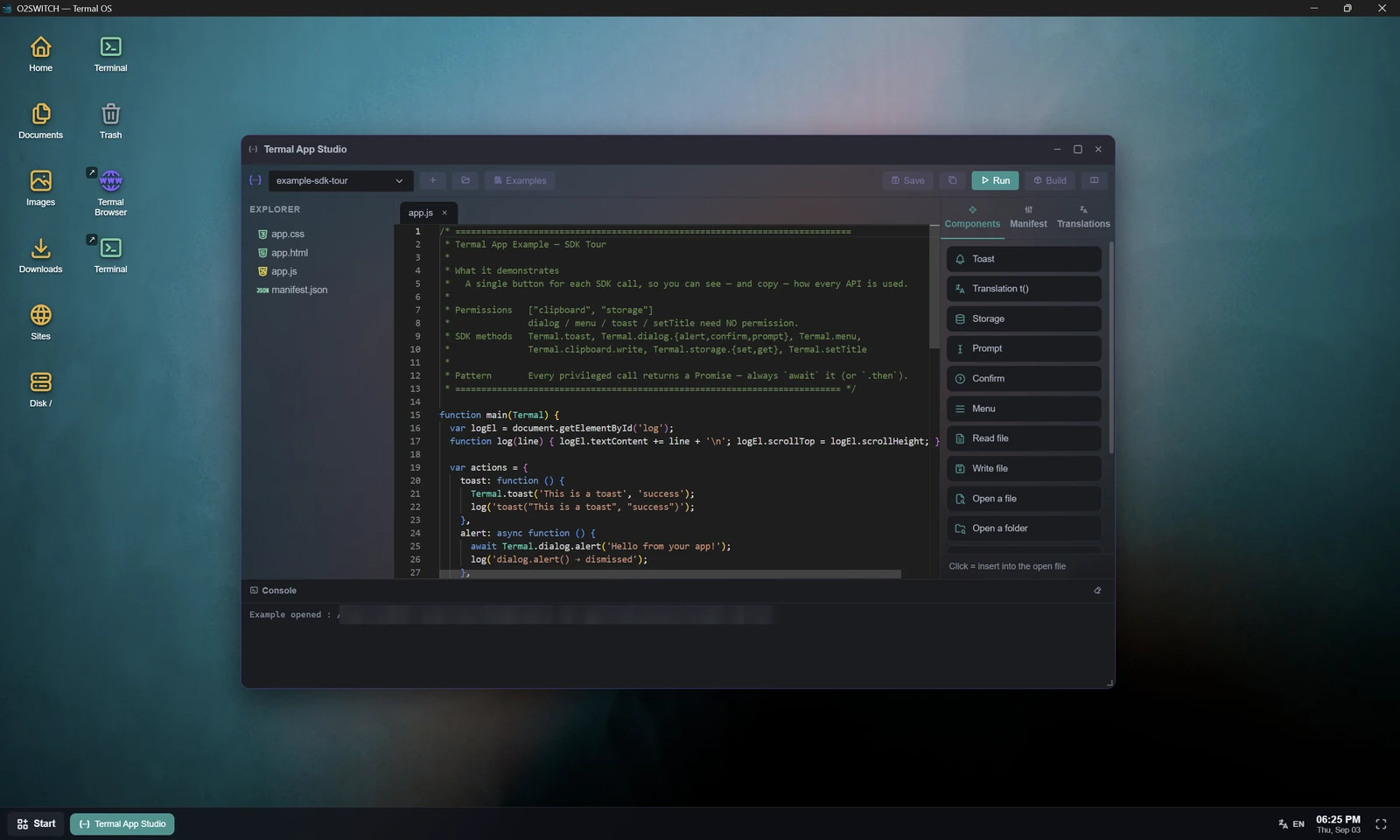
.tapp.New to the desktop itself? Why a desktop over SSH explains what it is for and what the built-in apps do - this page is the API reference.
Quick start
- Open Termal App Studio from the Start menu.
- Click + to scaffold a fresh project - or click Examples to open a ready-made, fully commented app you can read and adapt (see Examples).
- Edit
app.js/app.html/app.css. Use the Components palette on the right to insert SDK snippets at the cursor. - Open the Manifest tab to set the icon, color, window size and permissions.
- Open the Translations tab to add languages and key/value strings.
- Press ▶ Run to test in the sandbox. The Console at the bottom shows your app's logs and errors.
- Press 📦 Build to produce a
.tappin Downloads, then install it. The app appears in the Start menu and under My apps in the Termal App store.
Examples
The Studio ships with ready-made, heavily commented example apps. Click Examples in the toolbar and pick one - it is copied into a new project you can run, read and adapt (the original is never touched).
Browse the SDK & example apps on GitHub →
| Example | Shows |
|---|---|
| File Explorer | The mediated file model: pick a file or folder, list it, and open items in the desktop (dialog.openFile/openFolder → fs.list/read → open.path). |
| Web View | A cookie-capable webview embedded in the app window (Termal.webview). |
| SDK Tour | One button per API: toast, dialog, menu, clipboard, storage. |
| Text Editor | Read / write / list / delete files in the app's sandbox folder. |
| Notes & Todo | Persist the whole app state with key/value storage. |
| HTTP Client | Termal.net.fetch with a local or server exit. |
| Server Widget | Poll a URL from your SSH server, with auto-refresh. |
| Window Options | Size, maximize, resizable, title - plus a fixed mobile web view. |
Project structure
Projects live on the connected server, under ~/.termal/users/<you>/.apps/studio/projects/<key>/:
manifest.json     app metadata (key, name, icon, permissions, …)
app.html          your markup (rendered inside the app window)
app.js            your logic - defines function main(Termal)
app.css           your styles
i18n/<lang>.json   translations, one file per language
assets/…          images (e.g. an icon you imported)
At runtime the desktop loads app.html, injects your app.css, evaluates your app.js, and exposes the SDK as a global Termal object.
Manifest reference
manifest.json describes your app. You can edit it directly, or use the visual Manifest tab.
| Field | Type | Description |
|---|---|---|
key | string | Unique id (the folder name). Lowercase letters, digits, dashes. |
name | string | Display name (shown in the Start menu and store). |
version | string | e.g. 0.1.0. Part of the built filename. |
icon | object | { "type": "ti", "value": "ti-rocket" } for a Tabler icon, or { "type": "img", "value": "assets/icon.png" }. |
color | string | Accent color, e.g. #62d0a3. |
window | object | Window size & behavior:{ "w": 520, "h": 440, "resizable": true, "maximizable": true, "minimizable": true }.Set a flag to false to lock it (e.g. a fixed, mobile-sized window). See Window control. |
permissions | string[] | Capabilities your app may use. See Permissions. |
defaultLang | string | Fallback language code, e.g. en. |
langs | string[] | Languages you provide, e.g. ["en","fr"]. |
entry | string | HTML entry file. Defaults to app.html. |
author | string | Your name or handle. Shown in the installer and in the store. |
category | string | Store category slug (e.g. utilities, developer). Required - the build fails until you pick one. |
description | string | Short description shown in the installer and the store. |
tags | string[] | Keywords used to find your app in the Start-menu search and the store. |
disclaimer | string | Optional terms / EULA. If set, they are shown at install time with a checkbox the user must tick before Install is enabled. See Build & install. |
Runtime & entry point
Define a global main(Termal) function - it is called once after the runtime is initialized. Alternatively, listen for the termal:ready event.
// app.js
function main(Termal) {
  document.getElementById('go').onclick = () => Termal.toast('Hello!');
}

// equivalent:
window.addEventListener('termal:ready', () => { /* … */ });
Termal.on('ready', () => { /* … */ });
Your UI is the iframe's <body> - manipulate the DOM as usual. All privileged SDK calls return Promises (use await). console.log / errors are forwarded to the Studio Console.
Core & internationalization
| Member | Returns | Description |
|---|---|---|
Termal.t(key, fallback?) | string | Translated string for the current language (falls back to defaultLang, then fallback, then key). |
Termal.lang | string | Current language code. |
Termal.manifest | object | Your manifest. |
Termal.on(name, fn) | - | Subscribe to events: 'ready', 'lang'. |
const label = Termal.t('greeting', 'Hello');   // uses i18n/<lang>.json
Termal.on('lang', ({ lang }) => console.log('language is now', lang));
Dialogs, menu & toast no permission
| Method | Returns | Description |
|---|---|---|
Termal.dialog.prompt(title, def?) | string | null | Ask for text input. |
Termal.dialog.confirm(msg, ok?) | boolean | Yes/no confirmation. |
Termal.dialog.alert(msg) | - | Single-button message. |
Termal.menu(x, y, items) | any | null | Context menu at screen (x,y); resolves to the chosen item's value, or null if dismissed without a choice. |
Termal.toast(msg, kind?) | - | Transient notification (kind: 'info', 'success', 'warn', 'error'). |
const name = await Termal.dialog.prompt('Your name?');
if (await Termal.dialog.confirm('Delete this item?')) { /* … */ }

const choice = await Termal.menu(120, 80, [
  { label: 'Rename', value: 'rename', icon: 'ti-pencil' },
  { sep: true },
  { label: 'Delete', value: 'delete', danger: true },
]);
File system fs.readfs.write
By default the file system is sandboxed to your app's private data folder. Relative paths resolve inside it; .. is always rejected. Your app cannot read the rest of the server on its own.
To reach a file or folder outside that box, the user must hand it to you through a picker - the user's choice is the grant. An absolute path is accepted only after it (or its parent folder) came back from a picker in this window; anything else raises “path not granted”. Grants last for the app window's lifetime and are never persisted.
| Method | Permission | Description |
|---|---|---|
Termal.fs.list(path?) | fs.read | List entries: [{ name, type, size, mtime }]. |
Termal.fs.read(path) | fs.read | Read a text file (returns a string). |
Termal.fs.write(path, content) | fs.write | Write a text file (creates folders as needed). |
Termal.fs.mkdir(path) | fs.write | Create a folder. |
Termal.fs.remove(path, dir?) | fs.write | Delete a file (or folder when dir is true). |
Termal.fs.newFile(path) | fs.write | Create an empty file. |
Termal.fs.copy(from, to) | fs.write | Copy a file or folder. |
Termal.fs.move(from, to) | fs.write | Move / rename across folders. |
Termal.fs.rename(from, to) | fs.write | Rename in place. |
// Inside your data folder - always allowed:
await Termal.fs.write('notes.txt', 'remember the milk');
const text = await Termal.fs.read('notes.txt');

// Outside - only after the user picked it:
const p = await Termal.dialog.openFile();
if (p) {
  const content = await Termal.fs.read(p); // p is now granted
}
File & folder pickers no permission
These open the desktop's real file / folder dialogs. Showing a picker needs no permission - it reveals nothing until the user chooses. The returned absolute path (and, for a folder, its whole tree) becomes usable with fs.* and open.*; nothing else does. Reading or writing still requires fs.read / fs.write. They return null when the user cancels.
| Method | Returns | Description |
|---|---|---|
Termal.dialog.openFile(opts?) | string | null | Pick a file. opts: { title, dir }. |
Termal.dialog.openFolder(opts?) | string | null | Pick a folder (grants its whole subtree). |
Termal.dialog.saveFile(opts?) | string | null | Choose a save location. opts: { name, dir }. |
const dir = await Termal.dialog.openFolder({ title: 'Pick a project' });
if (dir) {
  for (const entry of await Termal.fs.list(dir)) console.log(entry.name);
}

const dest = await Termal.dialog.saveFile({ name: 'export.csv' });
if (dest) await Termal.fs.write(dest, csv);
Open with the desktop no permission
Hand a path to the desktop's own apps instead of reading it yourself. open.path routes by file type - image → viewer, archive → Termal Zip, .html → Termal Browser, otherwise the text editor - exactly like a double-click in the Explorer. Same scope as fs: the path must be inside your data folder or granted by a picker.
| Method | Description |
|---|---|
Termal.open.path(path) | Open a file with the matching desktop app. |
Termal.open.folder(path) | Open a folder in a new Explorer window. |
const p = await Termal.dialog.openFile();
if (p) await Termal.open.path(p); // opens in the right desktop app
Storage storage
Simple key/value store, persisted per app on the server (survives restarts).
| Method | Returns | Description |
|---|---|---|
Termal.storage.get(key, def?) | any | Read a value (or def if missing). |
Termal.storage.set(key, value) | - | Store any JSON-serializable value. |
Termal.storage.del(key) | - | Remove a key. |
const count = (await Termal.storage.get('count', 0)) + 1;
await Termal.storage.set('count', count);
Network net
| Method | Returns | Description |
|---|---|---|
Termal.net.fetch(url, opts?) | { status, body } | HTTP request via the backend. opts: { exit, method }. |
exit: 'server' routes the request through the SSH server (it goes out via the server's IP, using curl); exit: 'local' (default) fetches from the machine running Termal. See Network exit.
const res = await Termal.net.fetch('https://api.example.com/data', { exit: 'server' });
console.log(res.status, res.body);
Webview webview
Open a URL in a real Electron webview - a proper browser context on a persistent partition, so cookies and sessions work (logins behave normally). By default it opens as its own Termal window; pass embed: true to render it inside your app's window instead.
| Option | Default | Description |
|---|---|---|
url | - | Required. http / https only. |
embed | false | true → the webview takes over the calling app's window (instead of a new one). |
exit | 'local' | 'server' (via the server's IP / SSH tunnel) or 'local' (this machine). |
title | page title | Window title. If omitted, follows the page's own title. |
bar | true | Show the info bar (network badge + current URL). |
nav | false | Show navigation controls (back / forward / reload). |
resizable, maximizable, minimizable | true | Set any to false to lock it (e.g. a fixed, phone-shaped window). |
icon, w, h | - | Window icon and size. |
// A cookie-capable site, embedded in the app window:
await Termal.webview({ url: 'https://example.com/app', embed: true, nav: true });

// A fixed, phone-sized window:
await Termal.webview({ url: 'https://example.com', w: 400, h: 780, resizable: false, maximizable: false });<iframe> in your app.html is inside the app's sandbox (opaque origin) and cannot use cookies, so login-based sites won't work there. Use Termal.webview for anything that needs a session.Inside the webview, normal links navigate in place (keeping the chosen network exit). Links that open a new window (target="_blank" / window.open) are opened in Termal Browser.
Termal.webview.Clipboard clipboard
| Method | Returns | Description |
|---|---|---|
Termal.clipboard.write(text) | - | Copy text to the clipboard. |
Termal.clipboard.read() | string | Read the clipboard's text (empty string if unavailable - never rejects). |
await Termal.clipboard.write('copied text');
const pasted = await Termal.clipboard.read();
Progress bar no permission
Drive the desktop's progress bar during a long operation. One bar per app window.
| Method | Description |
|---|---|
Termal.ui.progress(label, pct) | Show / update the bar (pct 0-100). |
Termal.ui.progressDone() | Finish and dismiss it. |
await Termal.ui.progress('Processing…', 0);
for (let i = 0; i < files.length; i++) {
  await handle(files[i]);
  await Termal.ui.progress('Processing…', Math.round((i + 1) / files.length * 100));
}
await Termal.ui.progressDone();
Window control no permission
Set the initial size and locks in manifest.window. Control the window at runtime with Termal.win.*:
| Method | Description |
|---|---|
Termal.win.setSize(w, h) | Resize the window now. |
Termal.win.maximize() | Fill the desktop. |
Termal.win.restore() | Back to the normal size. |
Termal.win.minimize() | Send to the dock. |
Termal.win.center() | Center on screen. |
Termal.win.setResizable(bool) | Lock / unlock resizing. |
Termal.win.setTitle(text) | Rename the title bar. |
Termal.win.close() | Close the window. |
Termal.setTitle(text) and Termal.close() remain available as shortcuts.
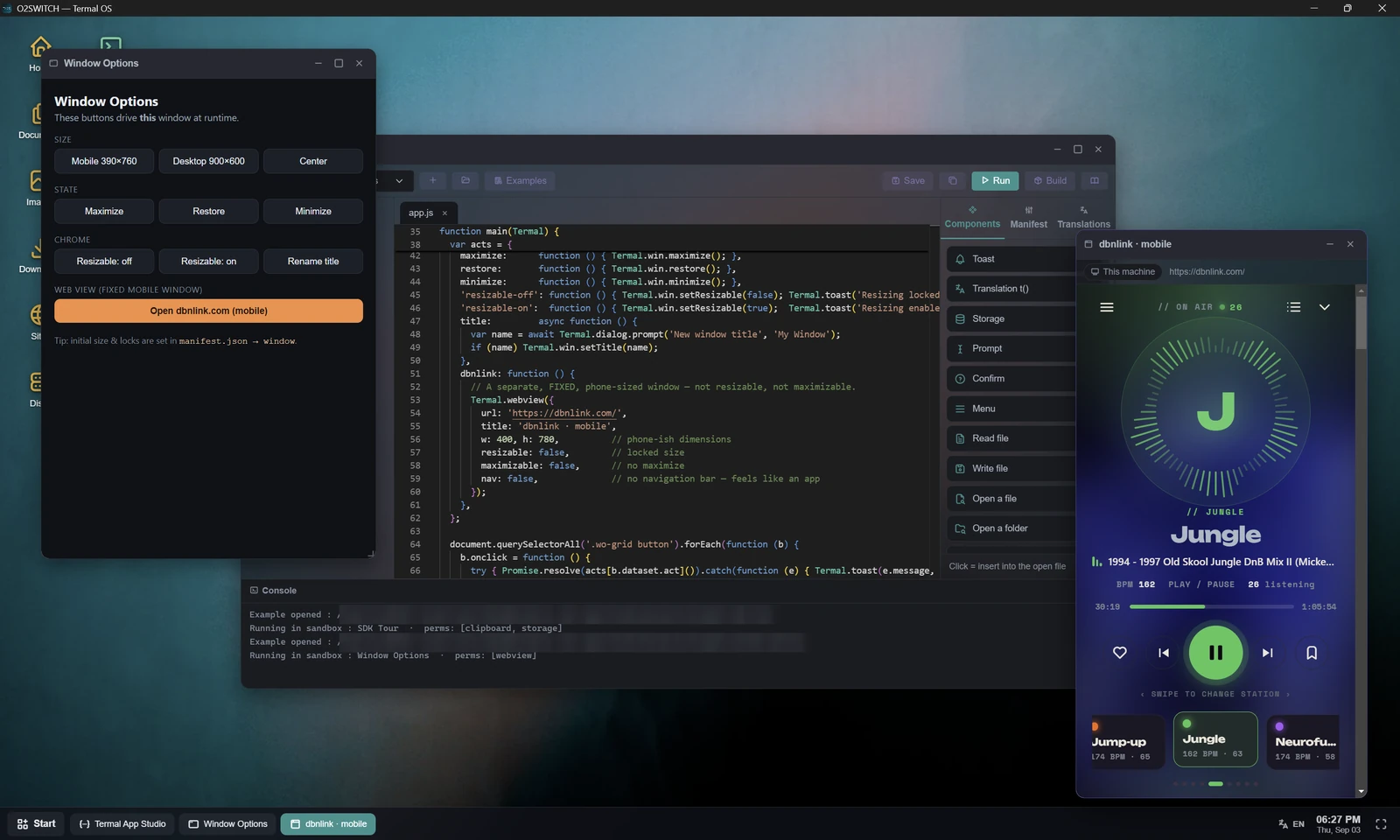
example-window-options app driving its own window, and opening a fixed phone-sized webview beside it. Note the Console line: the app runs in the sandbox with perms: [webview] - the only permission its manifest asked for.Termal.win.setSize(390, 760); // phone-sized
Termal.win.setResizable(false); // lock it
Termal.win.maximize();Permissions
Declare the capabilities your app needs in manifest.permissions (or tick the boxes in the Manifest tab). A call to a capability you did not declare is rejected with Permission denied. The user reviews granted permissions when installing your app.
| Permission | Grants access to |
|---|---|
fs.read | Reading files - in the app's data folder, or in any file/folder the user granted via a picker. |
fs.write | Writing / creating / deleting / moving files, in the same scope. |
storage | The key/value store. |
net | Termal.net.fetch. |
clipboard | Termal.clipboard.write and Termal.clipboard.read. |
webview | Termal.webview. |
Termal.open.*, the progress bar, window control (Termal.win.*), and core/i18n. Pickers reveal nothing until the user chooses, and open.* hands a path to the desktop rather than to your app - so neither needs a declared capability.Translations
Provide one JSON file per language under i18n/. Manage them visually in the Translations tab (add languages, edit key/value pairs).
// i18n/en.json            // i18n/fr.json
{ "greeting": "Hello" }    { "greeting": "Bonjour" }
At runtime, Termal.t('greeting') resolves against the current desktop language, falling back to your defaultLang. The current language is available as Termal.lang, and changes emit a 'lang' event.
Network exit
Both Termal.webview and Termal.net.fetch accept an exit option:
| Value | Behavior |
|---|---|
'local' | Traffic leaves from this machine (the device running Termal). Default. For safety, 'local' requests to private / internal addresses (localhost, 10/8, 172.16/12, 192.168/16, link-local…) are blocked (anti-SSRF) - use 'server' to reach the server's private network. |
'server' | Traffic is tunneled through the SSH server and exits via its IP. Useful to reach the server's private network or to appear "as the server". |
AllowTcpForwarding yes on the server. net.fetch with exit: 'server' uses curl on the server.Build & install
Press 📦 Build in the Studio. The project folder is zipped on the server into <key>-<version>.tapp inside your Downloads folder, and you're offered to install it.
Installing registers the app: it asks the user to grant the declared permissions, then the app appears in the Start menu, on the desktop's app list, and under My apps in the Termal App store, where it can also be uninstalled.
What your recipient sees for a .tapp installed outside the store (a file you shared and they double-clicked): an “unofficial app” warning above the permission review, and - if your manifest sets a disclaimer - its text with a mandatory checkbox that keeps the Install button disabled until it is accepted. Keep permissions minimal and fill in author / description so the installer looks trustworthy.
zip utility installed on the server (apt install zip).Limitations & tips
- The app runs in an opaque-origin sandbox: no access to the parent page, cookies or Node. All host interaction goes through the
TermalSDK. - A plain
<iframe>in yourapp.htmlis sandboxed and cannot use cookies. For anything that needs a login/session, useTermal.webview(real webview, persistent cookies) - withembed: trueto keep it inside your app window. - The file system is confined to your app's data folder - design around relative paths.
- Use the Console panel while developing;
console.errorand uncaught errors are reported there. - Keep your
permissionsminimal - users see them at install time.